
Online Keyboard Shortcuts
Master essential keyboard shortcuts for Windows, macOS, and Linux to boost productivity with clear, categorized guides at OnlineShortcuts.com.
product Details
Explore More
Alternatives

About Online Keyboard Shortcuts
Online Keyboard Shortcuts, available at OnlineShortcuts.com, is a comprehensive, free, and ad-free resource designed to help users of all skill levels master keyboard shortcuts across the three major operating systems: Windows, macOS, and Linux. The platform serves as a centralized reference guide, eliminating the need to search through disparate help menus or memorize complex command sequences. Its primary value proposition is productivity enhancement: by reducing dependency on the mouse, users can perform common tasks faster and more efficiently. The website is meticulously organized, offering system-wide shortcuts, operating system-specific key combinations (such as Windows Key shortcuts), and application-specific shortcuts for tools like Command Prompt, File Explorer, text editors, web browsers, and virtual desktop managers. Each shortcut is presented in a clear, visual format that shows the key combination and its function. Beyond the core reference, the site provides downloadable cheat sheets in PDF and PNG formats (including both dark and light themes), making it easy to keep a physical or digital copy nearby. The tone is professional yet approachable, with a touch of humor in its FAQ section, which acknowledges common user questions while maintaining clarity. The platform is built for anyone from beginners looking to learn basic navigation to power users seeking to optimize their workflow. It is fully responsive and accessible on mobile devices, tablets, and desktops, ensuring that users can access this vital productivity tool from any device. The content is curated for accuracy, though users are advised to verify shortcuts against their specific software versions, as updates can occasionally change hotkeys. Ultimately, Online Keyboard Shortcuts is a practical, no-nonsense tool that empowers users to work smarter, not harder.
Features
Comprehensive Cross-Platform Coverage
The website provides an exhaustive list of keyboard shortcuts for Windows, macOS, and Linux operating systems. This includes system-wide shortcuts that work across all applications, such as Alt+F4 to close a window on Windows or Command+Q to quit an app on macOS. Additionally, it covers operating system-specific shortcuts like the Windows Key combinations (Win+D to show desktop, Win+E to open File Explorer) and Linux desktop environment shortcuts. This cross-platform coverage ensures that users who work on multiple operating systems can rely on a single source for all their shortcut needs, saving time and reducing confusion.
Application-Specific Shortcut Libraries
Beyond system-wide commands, the platform delves into application-specific shortcuts for popular tools. Users can find dedicated sections for Command Prompt (Ctrl+C to copy, F7 to view command history), File Explorer (Alt+P to toggle preview pane, Ctrl+Shift+N to create a new folder), text editors (Ctrl+B for bold, Ctrl+I for italic, Ctrl+U for underline), web browsers (Ctrl+T for new tab, Ctrl+Shift+T to reopen closed tab), and virtual desktop managers (Win+Ctrl+D to create a new desktop). This granularity allows users to optimize their workflow within the specific applications they use most frequently.
Downloadable Cheat Sheets in Multiple Formats
One of the standout features is the ability to download all keyboard shortcuts as a handy reference file. The website offers three download options: a PDF file for easy printing and sharing, a dark-themed PNG image for use on dark mode devices, and a light-themed PNG image for standard backgrounds. This feature is particularly useful for users who want to keep a physical copy at their desk or a digital copy on their phone or tablet for quick offline access. The cheat sheets are designed to be visually clear and easy to read at a glance.
Responsive and Accessible Design
The website is built with a fully responsive design, ensuring that the content is easily viewable on any device, including mobile phones, tablets, and desktop computers. The layout adapts seamlessly to different screen sizes, and the shortcut listings are presented in a clean, tabular format that is easy to scan. This accessibility means users can quickly look up a shortcut while working on their computer or even while on the go, without needing to zoom or scroll excessively. The interface is intuitive and requires no learning curve to navigate.
Use Cases
Boosting Daily Productivity for Office Workers
Office workers who spend their days in word processors, spreadsheets, and email clients can dramatically increase their efficiency by mastering keyboard shortcuts. For example, using Ctrl+C and Ctrl+V for copy-paste, Ctrl+Z for undo, and Ctrl+S for save can save seconds per action, which adds up to significant time savings over a workday. The website provides all the essential text editing shortcuts (bold, italic, underline, find and replace) in one place, allowing users to learn and practice them systematically. This reduces repetitive strain from constant mouse use and helps maintain a steady workflow.
Streamlining Software Development and IT Workflows
Developers, system administrators, and IT professionals frequently work in command-line interfaces and code editors. The application-specific shortcuts for Command Prompt (like F7 to view command history) and virtual desktop managers (like Win+Ctrl+Left/Right to switch desktops) are invaluable for these users. By using shortcuts to navigate between virtual desktops, open new terminal windows, or quickly access system tools like Task Manager (Ctrl+Shift+Esc), they can maintain focus and avoid breaking their flow. The cross-platform coverage is also critical for professionals who manage both Windows and Linux servers.
Enhancing Accessibility for Users with Mobility Impairments
For individuals who have difficulty using a mouse due to motor skill challenges, arthritis, or other conditions, keyboard shortcuts are a vital accessibility tool. The website provides a clear, organized reference for all the major system-wide shortcuts, such as Alt+Tab to switch windows, Win+D to show the desktop, and Win+L to lock the screen. By learning these shortcuts, users can perform almost all common computer tasks without needing to precisely control a mouse cursor. The downloadable cheat sheets can be printed in large format or kept on screen for easy reference during the learning process.
Accelerating Learning for New Computer Users
New computer users, whether they are students, seniors, or professionals transitioning to a new operating system, often feel overwhelmed by the number of commands available. Online Keyboard Shortcuts acts as a structured learning guide, breaking down shortcuts into logical categories (system-wide, Windows Key, application-specific). Beginners can start with the most common shortcuts like Ctrl+C and Ctrl+V, then gradually expand their knowledge to more advanced commands. The FAQ section, though humorous, also provides clear answers about how to use the site and the accuracy of the information, reducing anxiety and building confidence.
Frequently Asked Questions
What is the official website for Online Keyboard Shortcuts?
The official website is OnlineShortcuts.com. This is the only official source for the comprehensive list of Windows, macOS, and Linux keyboard shortcuts provided by this service. The site is free to use and contains no ads, upsells, or adtech spyware.
How do I use the website to find a specific keyboard shortcut?
Browse the main sections labeled Windows, MacOS, and Linux. Each section is further divided into subsections like Systemwide Shortcuts, Operating System Key Shortcuts, and Application Specific Shortcuts. Simply scroll to the relevant category and look for the key combination and its description. You can also use your browser's find function (Ctrl+F on Windows or Command+F on macOS) to search for a specific key or function.
Are the keyboard shortcuts updated regularly to match the latest software versions?
The shortcuts are curated to be as accurate as possible for the specified software versions at the time of writing. However, software updates from Microsoft, Apple, and Linux distributions can sometimes change or deprecate hotkeys. It is always good practice to verify a shortcut with the specific version of the software you are running. The website does not guarantee real-time updates for every minor software release.
Can I request a new software application or shortcut to be added to the website?
Yes, users are encouraged to request new software or shortcuts. The website humorously suggests that you can do this by "thinking of a keyboard shortcut really hard," implying that the team will receive your mental message. In practice, the best way to contribute is to use the contact information available on the website to submit your request. The team reviews user feedback and may add new content based on popular demand.
Similar to Online Keyboard Shortcuts

tallycounterweb.com
Tally Counter is a simple online counting tool for tracking attendance, workouts, inventory, sports scores, visitors, and everyday activities.

iHatePosting
Create once, tailor for each platform, and schedule posts across 14 social networks from one simple dashboard.

Video2URL
Turn videos, images, and files into secure direct links for sharing, embedding, and automated workflows.

PDFWix
PDFWix is a free online PDF toolkit designed to make everyday PDF tasks simple, fast, and private.
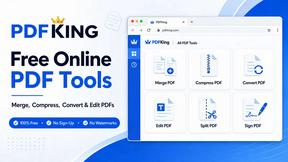
PDFKing
Free online PDF tools to merge, compress, convert, edit, sign, and manage documents—no signup, watermarks, or daily limits.